
Guide – 5 min read
Do you want your own Discord bot, but the word “coding” sounds scary? Good news: you do not need to write a single line of code. In this guide you will make a working Discord bot in about 10 minutes, one small step at a time. It is easy enough for a first-timer.
No code Free Windows About 10 minutes
What is a Discord bot?
A Discord bot is a helper that lives in your server. It can say hello to new members, give out roles, run games, count levels and coins, and keep your server tidy. Normally people build bots with code. But you can also build one with a no-code Discord bot maker.
How can you make a Discord bot without coding?
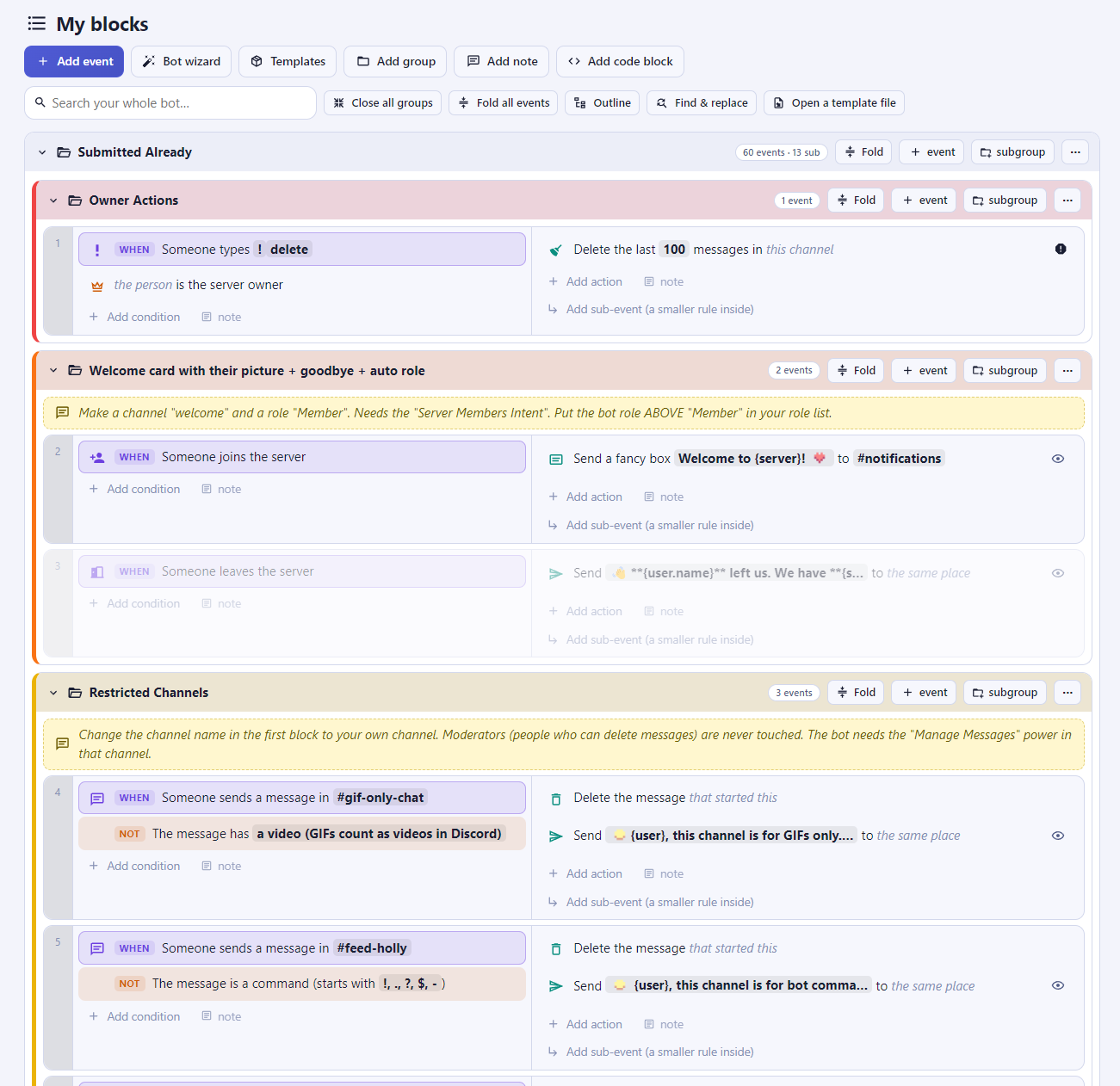
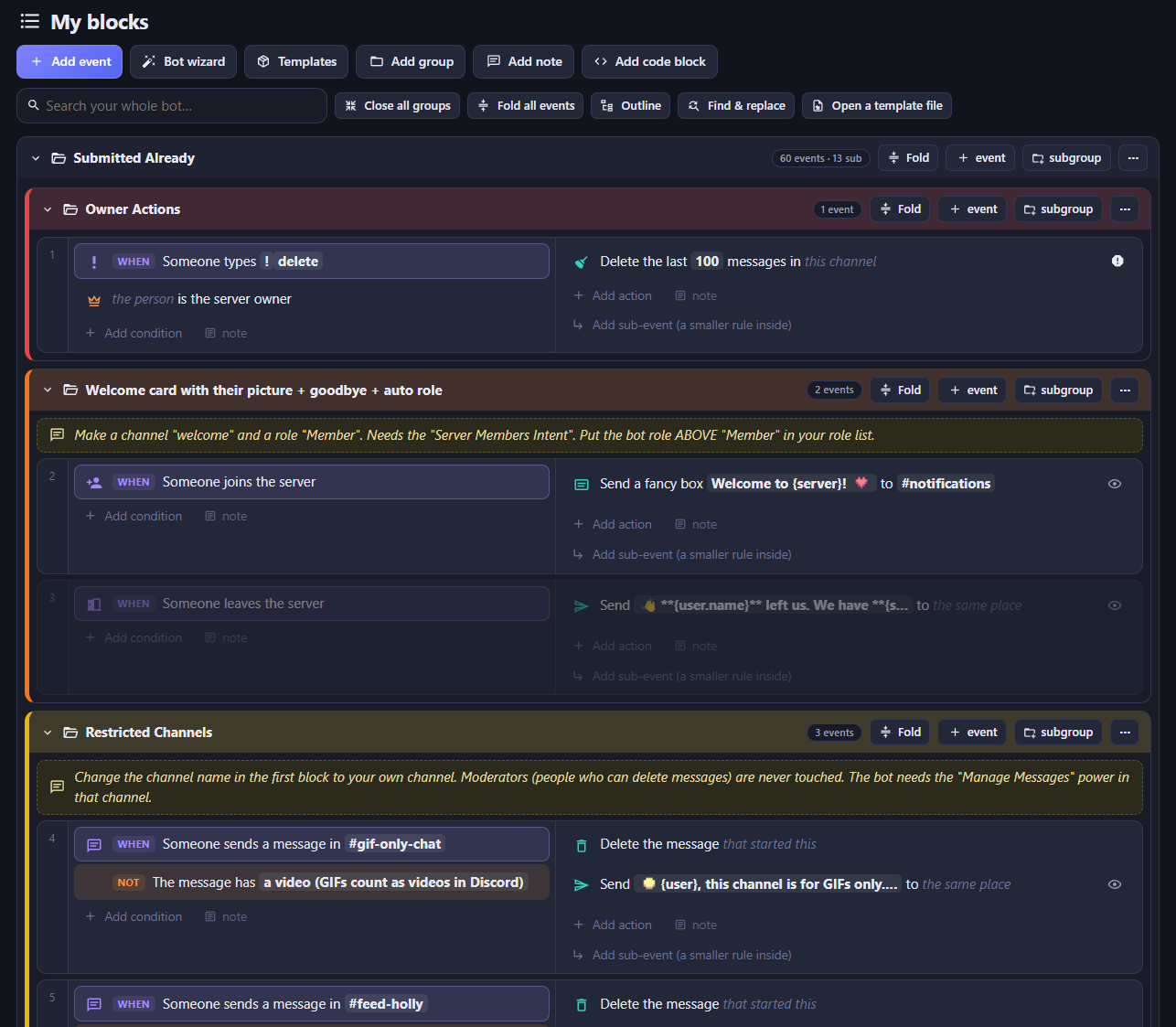
A no-code bot maker lets you build your bot by stacking blocks that read like sentences. In Cubevate, a free Discord bot maker, there are three kinds of blocks:
- WHEN (purple): what wakes the bot up, like someone joining or someone using a /command.
- ONLY IF (orange): an extra check that must be true.
- THEN DO (green): what the bot does, like sending a message.
For example: WHEN someone uses /hello, THEN send a message: Hello! Welcome! That is a real bot, and you will build it in a minute.
Watch the video tutorials
Prefer to watch first? The first video shows the whole setup, from creating your bot in Discord to bringing it online with Cubevate, and more tutorials are added over time. When you are ready, try the playable version below.
Try it now: build your first Discord bot right here
Before you download anything, give it a go! This is a tiny practice version of Cubevate. Follow the glowing button and the little guide at the top. It takes about 30 seconds.
What you need
- A free Discord account.
- A Discord server where you have the Manage Server power (your own server is perfect).
- A Windows computer.
- About 10 minutes the first time.
Step 1: Get Cubevate
Go to the Cubevate page and press Download. You get one file called Cubevate-Setup.exe. There is no account to make. Double-click it, follow the short window, and Cubevate opens with a shortcut on your desktop.
Your work is saved automatically on your own computer, so nothing is sent to anyone.
Step 2: Build your first bot
Let’s make a bot that says hello when someone types /hello.
- Open Cubevate. A welcome window explains the blocks. Press Let’s go!
- On the Blocks page, press Add event.
- Choose the purple WHEN block Someone uses a /command. Set Command name to hello.
- Click the green THEN DO area and choose Send a message. Type Hello {user}! Welcome!
The {user} part is a blank. When the bot runs, it turns into a ping of the person who used the command. The preview shows you how your message will look in Discord.
Rather not start from zero? Press Templates in the top bar and pick one of the 70 ready-made bots, like welcome messages, levels, tickets or giveaways. You can also use the Bot wizard: say what your bot is for, tick what it should do, and Cubevate stacks the blocks for you. Read more in the getting started guide and the templates page.
Step 3: Make your bot on Discord
Your bot needs its own name tag and password on Discord. Cubevate’s Finish & host page walks you through it too.
- Open the Discord developer page and log in with your normal Discord account.
- Click New Application, give it a name (this becomes your bot’s name) and press Create.
- Copy the Application ID and paste it on Cubevate’s Finish & host page. It is safe to share.
- Click Bot in the left menu, press Reset Token, then Copy. This is your bot’s secret key, like a password. Discord only shows it once.
Careful: never show your secret key to anyone, and never post it in Discord. If you lose it, just press Reset Token again.
Cubevate’s Finish & host page also tells you which switches (called intents) your bot needs. Switch them on under Bot and press Save Changes.
Step 4: Add your bot to your server
- On Cubevate’s Finish & host page, choose Just what it needs. That only gives the bot the powers it uses.
- Press Add the bot to my server. Discord opens.
- Choose your server, press Continue, then Authorize.
Tip: if your bot gives out roles, open Server Settings, then Roles, and drag the bot’s role above the roles it should give out. Discord does not let a bot touch roles above its own.
Step 5: Switch your bot on
- On Finish & host, press Download my bot (.zip).
- Unzip it (right-click, then Extract All).
- Open my-secrets.txt in Notepad, paste your secret key after DISCORD_TOKEN= and save.
- Double-click start.bat. The first time, it may open the Node.js page. Install the free LTS version, then double-click start.bat again.
- Wait for the green check mark message. Your bot is online!
Now go to Discord and type /hello. Your bot answers. You just made a Discord bot without coding!
Good to know: your bot is only awake while that black window is open and your computer is on. To keep it online all day, use a bot host. The run and host guide explains how.
Video: host your bot 24/7 and set up the Dashboard
Watch the full walkthrough: how to host your Discord bot 24/7 on a bot host and set up the Dashboard, step by step.
Want to try it before you set up hosting?
Cubevate has a Live mode. Connect your server on the My server page, then press Run my bot here. Your bot runs inside Cubevate while the page stays open, so you can test it right away.
Keep your bot safe
- Never share your secret key. Cubevate never puts it in files you share.
- Cubevate has a Safety Center that warns you before something breaks Discord’s rules.
- Test your bot in your own server first. Try every block once.
Learn more on the safety and privacy page.
What else can you make?
Once you know the blocks, you can build lots of things: welcome messages, levels and rewards, tickets, giveaways, games, moderation tools and temporary voice channels. Cubevate has 151 blocks and 62 templates to start from, and you can change everything.
Ready to make your own Discord bot?
Download Cubevate for free and build your first bot today. If you get stuck, the Cubevate docs have a step-by-step guide for everything, and you can ask questions in the Cubefem Discord community.