
Guide – 5 min read
A friendly welcome message makes new members feel at home, and it is one of the first things people notice in your server. You can set it up without writing any code. In this guide you will make a Discord welcome message bot that greets every new member, gives them a starter role and says goodbye when they leave.
No code Free Windows About 10 minutes
What a welcome bot does
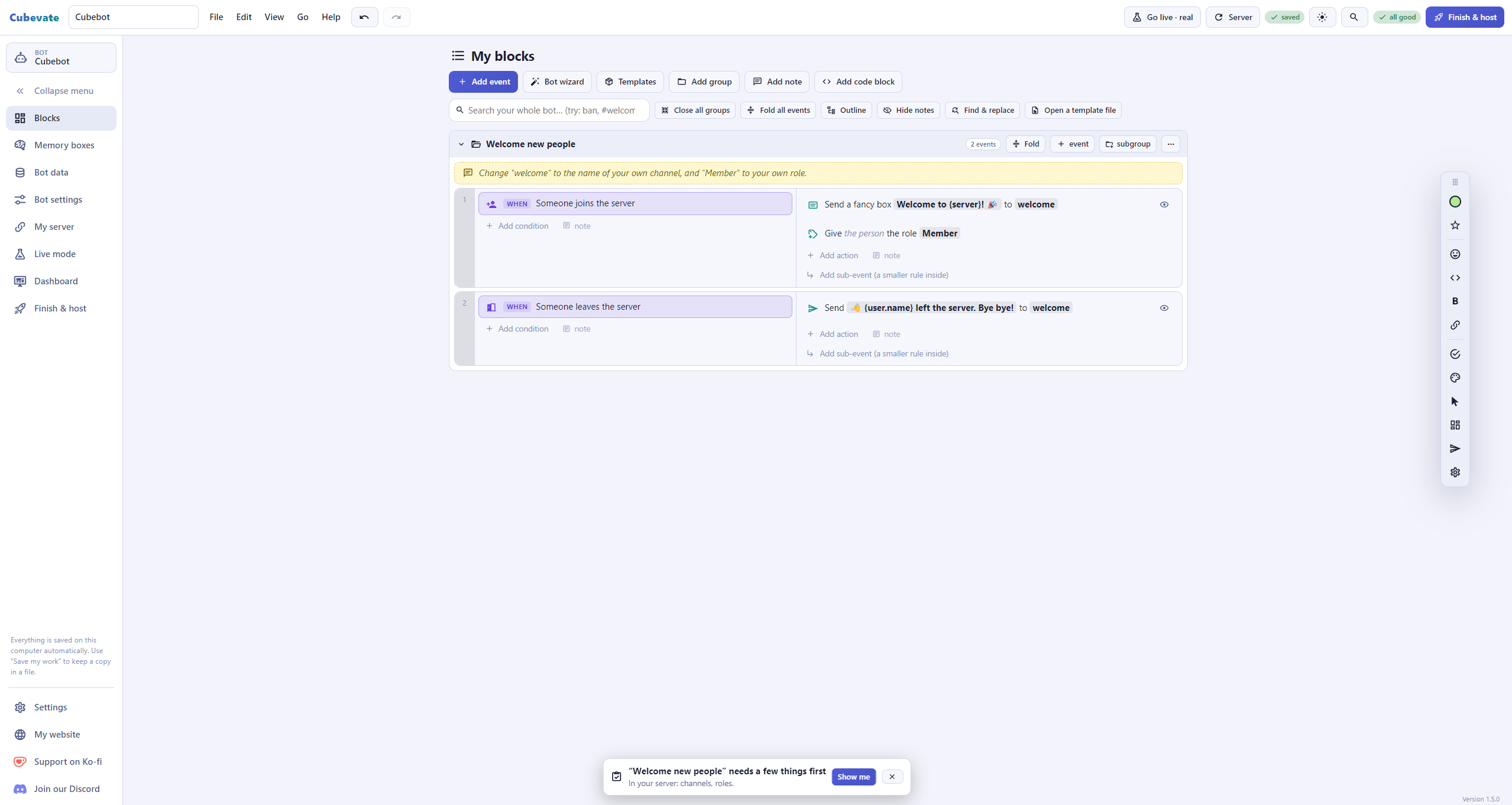
A welcome bot waits for someone to join your server. The moment they do, it can post a message in a channel, send them a private hello, give them a role and more. With Cubevate you build this from three kinds of blocks: WHEN something happens, ONLY IF it fits, and THEN DO an action.
Before you start
You need a bot that is made and invited to your server. If you have not done that yet, follow How to make a Discord bot without coding first. For the welcome message you also need two things on your server: a channel called welcome, and a role called Member.
Start here: the welcome template
- In Cubevate press Templates in the top bar.
- Pick Welcome card with their picture + goodbye + auto role and press Add to my bot.
- Open the blocks it added and change the words to sound like your server. The preview shows how the card will look in Discord.
- Press Finish & host and start your bot.
The template posts a big welcome card with the new person’s picture, their member number and how old their account is. It also gives them the Member role, sends them a private hello and posts a goodbye in the welcome channel when they leave.
Two things to switch on: in the Discord Developer Portal open your app, go to the Bot page and turn on Server Members Intent. And in your server’s role list, put your bot’s role above the Member role, or it cannot hand the role out.
Build it yourself from scratch
Want to understand how it works? Make the simplest version in one minute:
- On the Blocks page press Add event.
- Choose the purple WHEN block Someone joins the server.
- In the green THEN DO area choose Send a message. Pick your welcome channel and type: Welcome to {server}, {user}!
- Press OK. That is already a working welcome bot.
The parts in curly brackets are blanks. When the bot runs, {user} turns into a ping of the new member and {server} into your server’s name.
Make it look good
Instead of plain text you can use a fancy box. Choose Send a fancy box as the action and fill in a title, a text and a colour. Some blanks you can use:
- {user.name} the person’s name without a ping
- {server.members} how many members your server has
- {user.created} when their account was made
- {user.avatar} their picture, which you can use as the big picture of the box
- {server.icon} your server’s icon
Add a role and a private hello
Under the same WHEN block you can stack more actions. Add Give a role and choose Member, so new people get a starter role. Add Send a private message to say hi in their messages. Some people keep private messages closed, so that one can fail now and then, which is fine.
For a goodbye, add another event with the WHEN block Someone leaves the server and send a short message to the same channel.
The fastest way once you are set up: the Dashboard
If your bot runs 24/7 on a host, Cubevate’s Dashboard has a Welcome & goodbye page. You change the words, the channel and the role there, with no blocks to rebuild. It needs the newest bot (download your bot again and replace bot.js). The Run and host guide explains how to connect the Dashboard.
- Open the Dashboard page in Cubevate and choose Welcome & goodbye.
- In Welcome message, tick On, pick the channel and write your text. Blanks like {user} and {server} work here too, and you see a live preview.
- Want a fancy box? Tick Show it as a fancy box to add a title, colour, picture and footer, and show the new person’s picture in the corner.
- Pick a role under Give new people this role if you want one. The bot’s own role must sit above it in your server’s role list.
- Turn on Private hello and Goodbye message the same way if you want them.
- Press Save. It is live right away. Use Send a test welcome to see it in your server.
The Dashboard welcome works on its own, so switch off any welcome block in My blocks to avoid greeting people twice. Your bot also needs the Server Members intent switched on.
Tips for a good welcome
- Keep it short and warm. Two or three lines is plenty.
- Point to your rules channel and your “introduce yourself” channel.
- Do not ping everyone. One ping for the new member is enough.
- Try it first on a test server, or use Live mode with the Pretend switch on.
Video: host your bot 24/7 and set up the Dashboard
Watch the full walkthrough: how to host your Discord bot 24/7 on a bot host and set up the Dashboard, step by step.
Ready to welcome your members?
Download Cubevate for free and make your first welcome bot today. If you get stuck, the Cubevate docs have a step-by-step guide for everything, and you can ask questions in the Cubefem Discord community.